
TL;DR
Calibrate the display before judging portrait exposure or skin color, then use a color-managed editor and an appropriate export profile. Disable night mode during editing and compare the finished image on another screen. Calibration improves consistency, but it can't make every viewer's display match.
A portrait editor can correct the photograph when the real problem is the screen. An overly bright display encourages darker exports; a warm display encourages cooler skin edits. For anyone researching photo editing programs, monitor calibration for portraits starts with separating three controls: the display's settings, its color profile, and the image's color space. A reliable workflow checks those controls before retouching, then tests the exported file in its intended viewing context.
Table of Contents
What does monitor calibration mean for portraits?
Monitor calibration for portraits adjusts a display toward chosen brightness, white-point, and tonal targets so editing decisions rest on a more predictable image. Profiling then describes the display's color behavior for compatible software. Neither process edits the photograph; both help the editor judge exposure, skin color, and contrast more consistently.
Monitor calibration: The process of adjusting a display toward defined viewing targets.
Skin is a useful reference because small shifts in warmth, saturation, or shadows can change a person's appearance. Calibration supports consistent judgment, not a universal skin-color recipe. Real skin varies, and lighting adds its own color.
Terminology that separates the screen from the file
Calibration, profiling, and image color spaces solve different parts of the same display problem.
| Term | Meaning | Portrait-editing role |
|---|---|---|
| Calibration | Adjusting the display toward selected targets | Establishes a predictable viewing baseline |
| Monitor ICC profile | A description of a particular display's color behavior | Helps color-managed software render colors appropriately |
| Image color space | The system used to describe colors in an image, such as sRGB | Defines how the file's color values should be interpreted |
| White point | The reference color of displayed white | Affects judgments of warm or cool skin |
| Night mode | A viewing adjustment that usually warms the display | Changes the appearance being judged during editing |
A monitor profile describes a display; an image profile describes image colors. They aren't interchangeable.
Why do display settings change portrait edits?
Display settings change portrait edits because brightness, white point, and contrast affect how the same image appears without changing its stored pixels. A bright screen can hide a dark export, while a warm screen can make neutral skin appear yellow. Stable viewing conditions help separate display effects from genuine photographic problems.
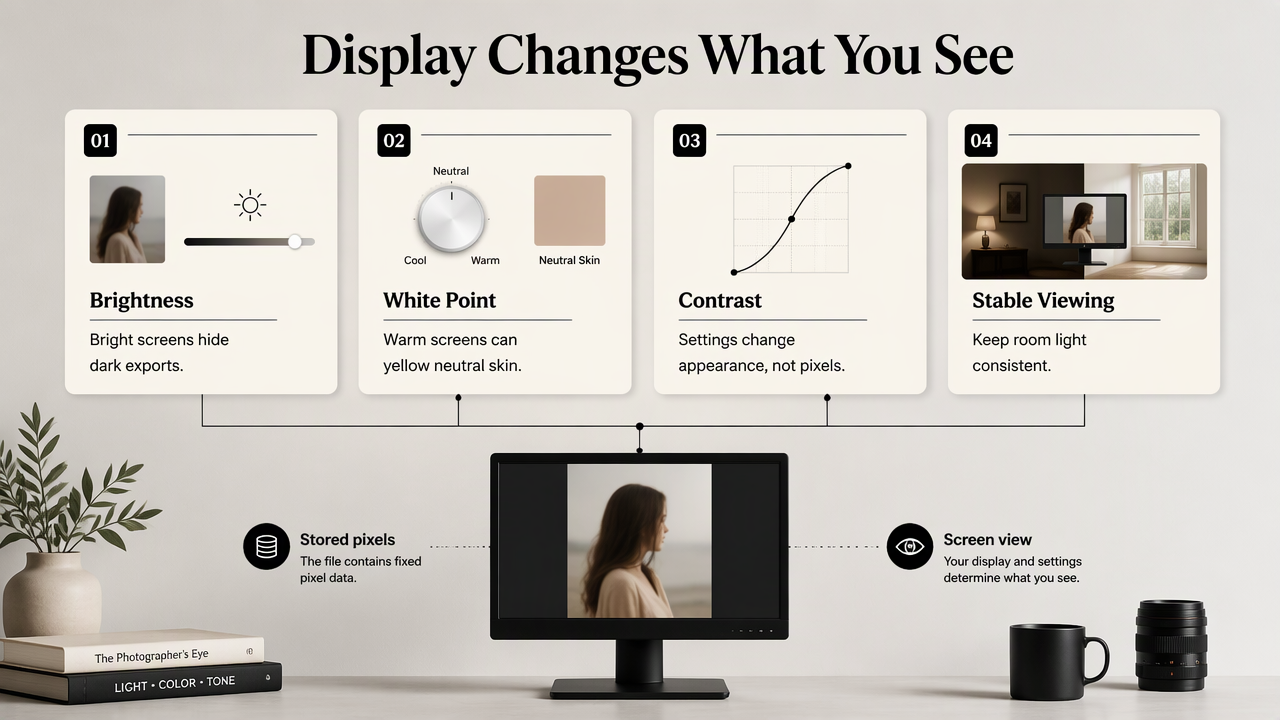
Brightness and room light influence exposure judgment
Screen brightness should suit a stable editing environment rather than remain at the display's maximum setting. A photograph viewed in a dim room can appear brighter than the same photograph viewed beside a sunlit window.
For print work, the reference print also needs suitable lighting. Comparing a luminous monitor with a poorly lit print doesn't isolate a calibration problem.
- Keep room lighting reasonably consistent between editing sessions.
- Reduce reflections and avoid direct light falling on the screen.
- Disable automatic brightness while making critical adjustments.
- Choose a calibration target suited to the display and intended output.
Night mode and HDR need separate attention
Night Light, Night Shift, and similar features serve viewing comfort rather than neutral color evaluation. Turn them off during color-critical portrait work, along with adaptive color features that alter the display's appearance.
HDR also deserves an explicit choice. For ordinary SDR profile images, use a consistent SDR workflow rather than switching display modes mid-edit. HDR portrait editing requires compatible software, display settings, and delivery conditions.
A flattering portrait can still contain warm light. The goal isn't to remove every color cast, but to judge whether that warmth belongs to the photograph or the viewing setup.
How should a portrait editing screen be checked?
- Let the display stabilize before evaluating color.
- Disable night mode, adaptive brightness, and dynamic contrast.
- Calibrate and profile with compatible measurement hardware.
- Confirm the operating system uses the resulting monitor profile.
- Edit in a color-managed application with the image profile preserved.
- Export for the destination and inspect the actual delivered file.
Use measurement rather than a visual guessing exercise
A hardware colorimeter measures displayed patches while its software guides calibration and builds a profile. Built-in visual calibration tools can support basic checks, but human vision adapts to surrounding light and color, making visual judgment less dependable for precision work.
For a dual-monitor setup, profile each screen separately. The same profile shouldn't be treated as a universal correction for displays with different color behavior.
Follow the calibration tool's instructions for warm-up, measurement placement, target selection, and rechecking. Recheck after meaningful changes to the display mode, settings, or editing environment.
Keep application profiles and export profiles distinct
Adobe Photoshop, Adobe Lightroom, and other color-managed editors use image-profile information and the display profile for different purposes. Installing a monitor profile doesn't mean assigning that profile to a portrait file.
For ordinary web delivery, sRGB is a practical default unless the destination specifies another workflow. Convert the export appropriately and embed its image profile where supported. Assigning a different profile merely changes interpretation; conversion aims to preserve appearance.
A browser preview should be checked against the exported file, not just the editor's working view. Different application settings can explain apparent disagreements.
Inspect three portrait details before delivery
Final checks should target visible decisions rather than endless screen matching.
- Skin: Check cheeks, forehead, and neck for believable color relationships.
- Highlights: Inspect forehead shine and pale clothing for lost detail.
- Shadows: Check hair, jackets, and facial contours for blocked-up areas.
Compare the same export on another reasonably neutral display at ordinary brightness. A phone provides a useful delivery check, not a replacement reference standard. If every image appears warmer on that phone, investigate its viewing settings before changing the portrait.
How Looktara fits a calibrated portrait workflow
Looktara fits a calibrated portrait workflow at the image-creation stage, while a calibrated display supports consistent selection and finishing. For professional profile imagery, the practical sequence is to create candidate portraits, compare them under stable viewing conditions, and prepare the selected image for its intended destination.
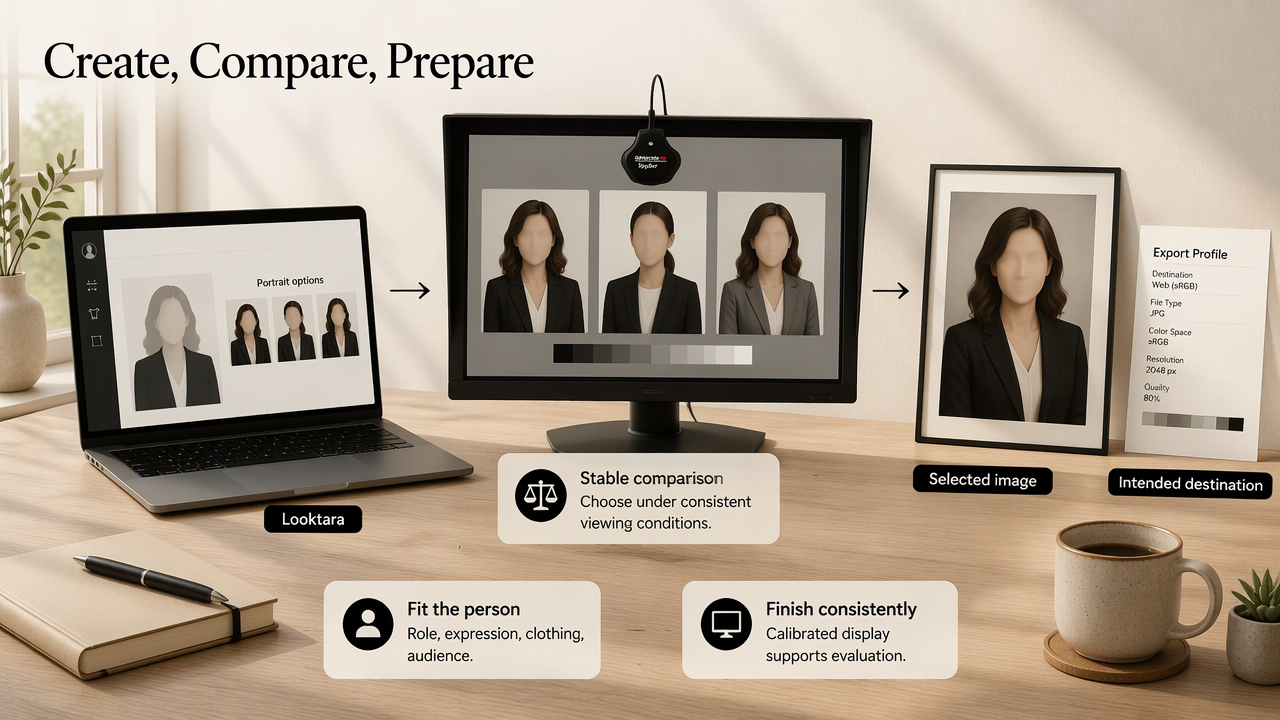
Separate image creation from final approval
Portrait creation and portrait evaluation are complementary tasks. A professional headshot needs to suit the person's role, expression, clothing, and intended audience, alongside its technical appearance.
Looktara provides a relevant starting point for AI portrait creation. The Looktara platform belongs in the creation stage; display calibration belongs in the evaluation stage. A fitness business owner preparing professional assets can also explore fitness-focused LinkedIn imagery as a destination-specific option.
A simple approval checklist keeps selection focused:
- Choose an expression appropriate to the profile's purpose.
- Check facial details and recognizable identity.
- Review the crop at the destination's actual display size.
- Save a finished export separately from editable versions.
AI image research isn't calibration evidence
AI research provides context for image creation, not proof of monitor accuracy. The 2022 survey Advances in Neural Rendering covers neural rendering, while the 2024 paper Prompting AI Art examines creative skill in prompt engineering.
Neither topic replaces display measurement. In 2026, generated imagery and conventional photographs still need a clear separation between how an image is produced and how its final appearance is evaluated.
Portrait monitor calibration FAQ
Portrait monitor calibration improves the editing reference, but delivery requirements and viewing conditions still determine the final checks.
Use one controlled reference for editing and a small number of destination checks for delivery.
Can a photo editing program calibrate a monitor?
A photo editing program generally handles image adjustments and color-managed display, while calibration software and measurement hardware handle the monitor. An editor's white-balance control changes the photograph, not the screen. Those tools should remain separate so display corrections don't become permanent changes to otherwise accurate portrait files.
Does calibration make portraits identical on every screen?
Calibration can't make every screen identical because viewers use different displays, brightness settings, ambient lighting, and color modes. Its purpose is to establish a dependable editing reference. Appropriate export settings and a second-device check improve delivery confidence without requiring repeated edits to satisfy every possible screen.
Is sRGB enough for LinkedIn and dating-profile portraits?
sRGB is a sensible default for ordinary online portraits when the platform doesn't specify another color workflow. The export should also have suitable dimensions, a useful crop, and appropriate compression. The uploaded result deserves a final inspection because a platform may resize or process the file after delivery.
Conclusion
Put the display check before the retouch
A dependable portrait workflow starts with stable viewing conditions, continues through calibration and color-managed editing, and ends with an exported-file check. Before the next headshot session, save a repeatable screen-check checklist and test one finished portrait in its intended profile placement.
For professional image creation with Looktara, visit looktara.com, then evaluate candidate portraits on the prepared display before selecting the final crop and export.
Generated by EarlySEO.com