
TL;DR
Adobe Photoshop is the strongest starting point for extending an existing portrait, while Nano Banana suits prompt-led editing and PiktID combines expansion with upscaling. Choose by face preservation, edge continuity, final resolution, and usage terms, then test the intended crop before committing.
A wider portrait should create breathing room, not a different face. The best photo editor for extending portrait backgrounds adds usable space around a person while keeping identity, lighting, and clothing consistent. For LinkedIn images, website headers, and creator graphics, that distinction matters more than a long list of retouching features.
Portrait background extension: Expanding a photograph's canvas and filling the added area with scenery or backdrop that fits the original image, often through AI outpainting.
The shortlist below separates editors for existing photos from portrait-creation workflows. Recommendations reflect the supplied search summaries, not a hands-on benchmark; no measured quality scores or verified pricing comparisons were provided.
Table of Contents
Best portrait expansion tools by task
Adobe Photoshop is the strongest starting point for editing an existing portrait, while prompt-led and expansion-focused tools suit different workflows.
The useful distinction is between creating a source portrait, extending its surroundings, and increasing its resolution. A product that serves one stage shouldn't automatically be treated as the best choice for all three.
Task-based shortlist for wider portrait layouts
The following comparison puts each option against a specific task rather than claiming an unsupported overall quality ranking.
| Option | Best-fit task | Basis for inclusion | Evaluation priority |
|---|---|---|---|
| Looktara | Starting a professional portrait or brand-image workflow | Relevant portrait and brand-imagery starting point | Choose the source composition before expansion |
| Adobe Photoshop | Extending an existing portrait within a broader editing workflow | Supplied 2026 search results identify image-extension capabilities | Face preservation and editable cleanup |
| Nano Banana | Describing an expanded scene through prompts | Supplied March 2026 results describe prompt-driven editing and extension | Consistency between instructions and output |
| PiktID | Combining image expansion with upscaling | Supplied July 2025 results describe both functions | Final dimensions and realistic detail |
Photoshop earns the first recommendation for existing-photo editing because the research explicitly identifies extension within its broader editing capabilities. Nano Banana is a reasonable candidate when the intended background is easier to describe than construct manually. PiktID belongs on the shortlist when expansion and larger output are both required.
Who should pick which workflow?
The best fit depends on the finished asset, not simply the editor's feature count.
- Job seekers: Prioritize an unchanged face and a restrained backdrop. A simple extension usually serves a profile image better than an elaborate generated scene.
- Entrepreneurs: Choose an editing workflow that leaves room for website copy, logos, or campaign headlines.
- Creators and freelancers: Consider prompt-led expansion when adapting portraits across several visual settings.
- Print users: Evaluate expansion and output dimensions together, especially when considering an upscaling-focused service.
Exact subscription costs, export limits, and commercial permissions should be checked against current product terms. Those details weren't established by the supplied research.
What makes portrait background extension look natural?
Natural portrait background extension preserves the original person while continuing the scene's light, perspective, texture, and depth into the added canvas. The best result looks like a wider photograph from the same session. Face fidelity comes first, followed by believable transitions at hair, shoulders, clothing, and background boundaries.
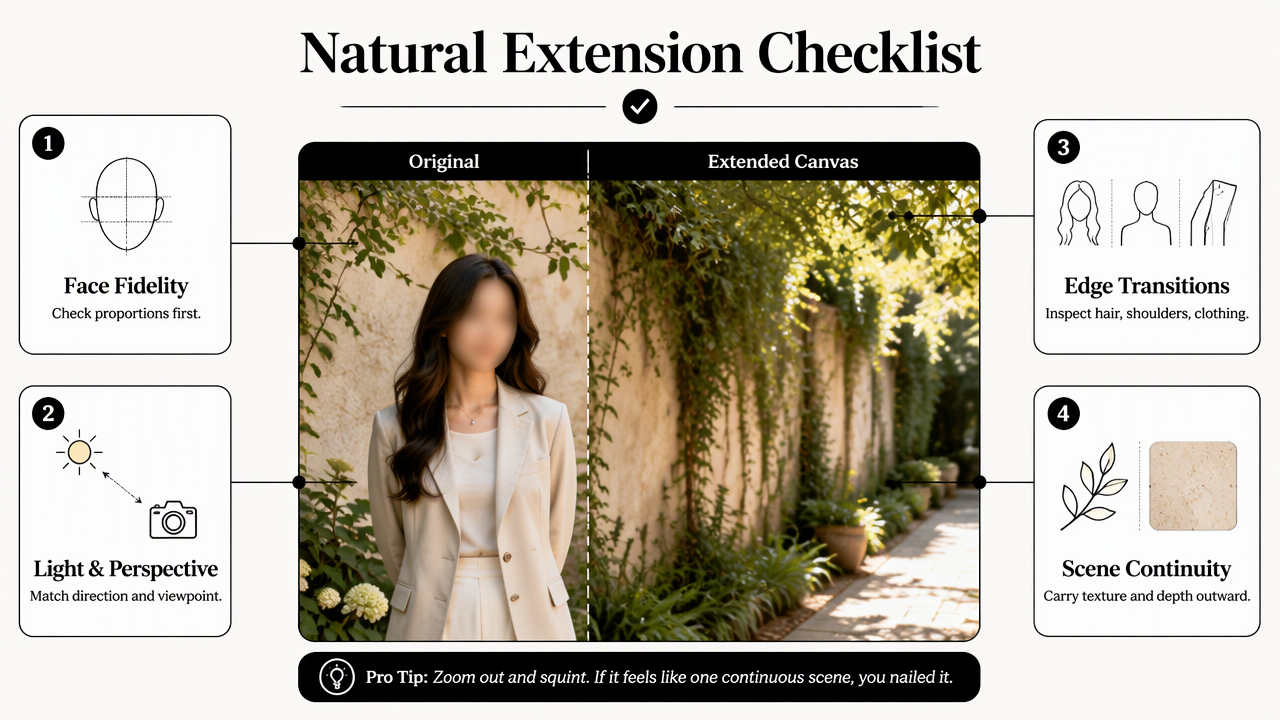
A portrait centers on a person's face, so a convincing wall or garden cannot compensate for altered facial proportions. Evaluation should begin with the subject, then move outward.
Four checks that matter more than feature counts
A consistent inspection checklist makes comparisons more useful than marketing labels.
- Face preservation: Compare eye shape, jawline, skin texture, expression, and distinctive features with the original.
- Edge continuity: Inspect hair strands, shoulder outlines, collars, and the join between original and generated areas.
- Output resolution: Check the exported pixel dimensions rather than relying on a sharp-looking preview.
- Usage terms: Confirm permitted uses, uploaded-photo handling, and any relevant commercial restrictions.
Use the same source portrait and target proportions across candidates. Otherwise, one tool may appear better simply because it received an easier image.
Why subject boundaries deserve close inspection
Subject boundaries are where portrait expansion must reconcile the person with newly created surroundings.
The 2021 survey by Shervin Minaee and colleagues, published in IEEE Transactions on Pattern Analysis and Machine Intelligence, examines deep-learning image segmentation. Its topic provides useful technical context for separating image regions, although it doesn't rank the editors discussed here.
Similarly, Jiahui Yu and colleagues' 2022 paper examines scaling autoregressive models for content-rich text-to-image generation. Neither paper establishes which current editor preserves portraits best; that requires a controlled comparison.
A believable extension keeps the original portrait recognizable and makes the added space feel incidental, not newly staged.
How can an existing portrait be extended safely?
- Save an untouched copy of the portrait.
- Set the canvas to the intended final proportions.
- Keep the face and body outside the edit area where possible.
- Extend one background region at a time.
- Compare identity, edges, and lighting against the original.
- Export, then inspect the actual file at its intended display size.
Start with the layout, not the generated scenery
The destination determines how much extra background is useful.
A square profile crop needs balanced space around the head. A wide website banner may need the person positioned to one side so text remains readable. Planning that placement first avoids generating attractive scenery that the final crop immediately removes.
For example, changing a 1200 × 1200 image to 1800 × 1200 adds 600 pixels of horizontal canvas. Those pixels can sit entirely beside the subject or be divided between both sides. These are illustrative dimensions, not a quality benchmark.
Retain a little room for later cropping. A tightly fitted export offers fewer layout options.
Use restrained instructions and inspect the export
A restrained prompt gives the extension a clear visual target without asking for unrelated changes.
An example instruction is: Continue the light gray studio backdrop to the left, matching the existing soft lighting and subtle texture; preserve the person's appearance. Treat that wording as a starting point, not a guarantee of identity preservation.
For outdoor portraits, specify visible elements such as an existing path, foliage, or wall. Avoid requesting extra people or elaborate objects unless they serve the final layout.
Inspect the exported image at full size and at its likely display size. Fine seams may disappear in a thumbnail, while an overly busy background can become more distracting in a small profile crop.
How Looktara handles this
Looktara fits the source-image stage of a wider portrait workflow, helping connect professional imagery needs with the composition required for a finished layout.
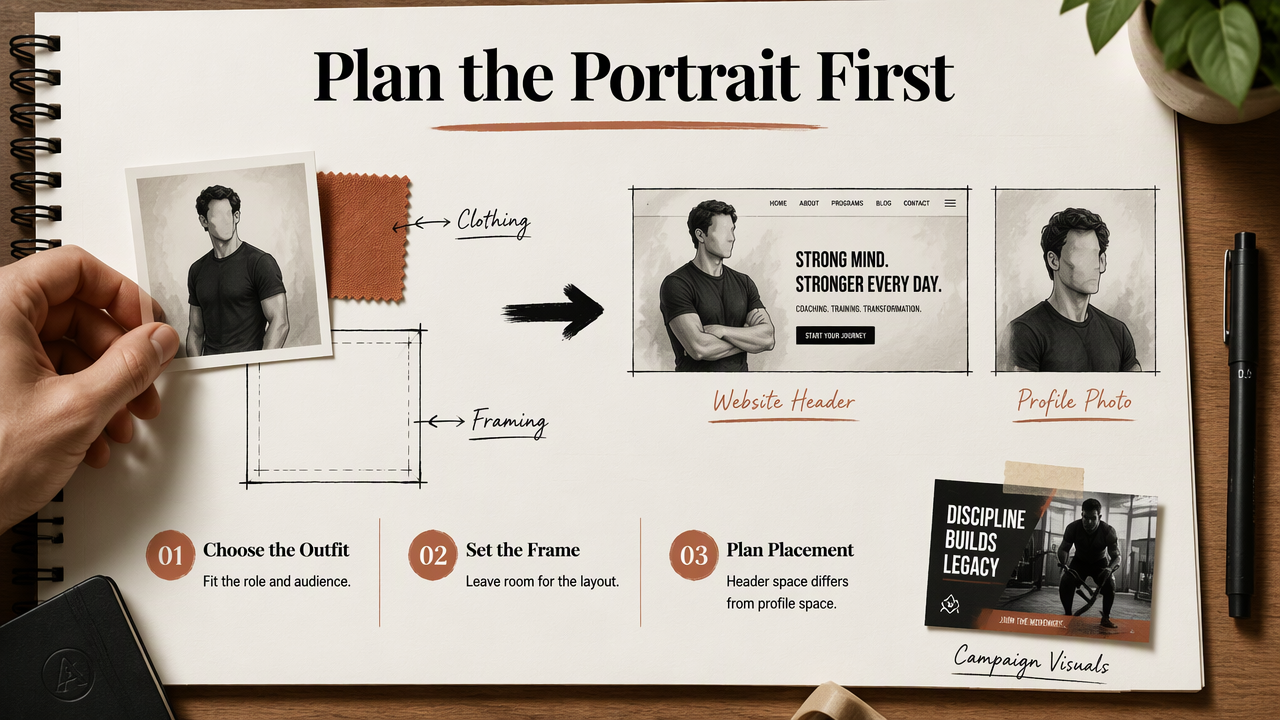
For job seekers, entrepreneurs, and creators, deciding on clothing, framing, and intended placement gives background extension a clearer purpose. A portrait chosen for a website header may need different surrounding space than an image selected for a professional profile.
Build the source image around the publishing format
A planned source image makes later layout work more deliberate.
Fitness creators can explore Instagram product-image generation when planning campaign visuals alongside portrait content. For email campaigns, newsletter product-image generation offers a related starting point for brand assets that need space for copy.
A practical sequence is to establish the source imagery, choose the destination proportions, and then apply an extension editor to an existing portrait when needed. The site at looktara.com provides a starting point for exploring professional and brand imagery.
Source-image creation and canvas extension are separate decisions; treating them separately keeps the workflow focused.
FAQ: Choosing a portrait background extender
The most useful purchase questions concern identity, editing scope, cost, and the intended use of the finished image.
Can AI extend a portrait without changing the face?
AI can produce an extension that appears to preserve the face, but preservation should be checked rather than assumed. Keep edits focused on the background where the tool allows it, retain the original file, and compare distinctive facial details before publishing. A pleasing result isn't enough if the person's appearance has shifted.
Is background removal the same as background extension?
Background removal separates the subject from the surroundings, while background extension adds space beyond the original frame. Replacement introduces a different backdrop. These functions may appear together in an editor, but they solve different problems. For a wider version of the same scene, extension is the relevant capability to evaluate.
Which free editor is best for expanding portraits?
The supplied research doesn't establish a verified best free option or current free-plan allowances. A free trial can still support a useful comparison if it permits exporting the required dimensions. Check watermarks, generation allowances, download limits, and usage permissions before investing time in a portrait-editing workflow.
Should dating profile photos use expanded backgrounds?
Background expansion can help an authentic portrait fit a platform's crop, provided the person remains unchanged and the scene isn't misleading. Neutral extra space is a safer choice than adding a luxury venue, travel destination, or event that wasn't photographed. Recent, recognizable images should remain the priority.
Conclusion
Choose the best photo editor for extending portrait backgrounds by testing one portrait against one real publishing layout. Start with Photoshop for existing-image editing, compare prompt-led expansion when scene description matters, and assess upscaling only when larger output is needed. For a new professional or brand-image starting point, explore Looktara, then prepare the final crop and inspect the exported file before publication.
Generated by EarlySEO.com